Menu-bar companion
Surge
A companion that lives in your menu bar, with glow, sound and handy tools.
- Charge glow
- Flowing battery icon
- Sounds and ripples for keys and clicks
- Quick Notes
- Clipboard
- Launchpad

A browser that feels alive. Liquid glass, jelly motion, and zero clutter.
For Mac and Windows. Source and every release on GitHub.
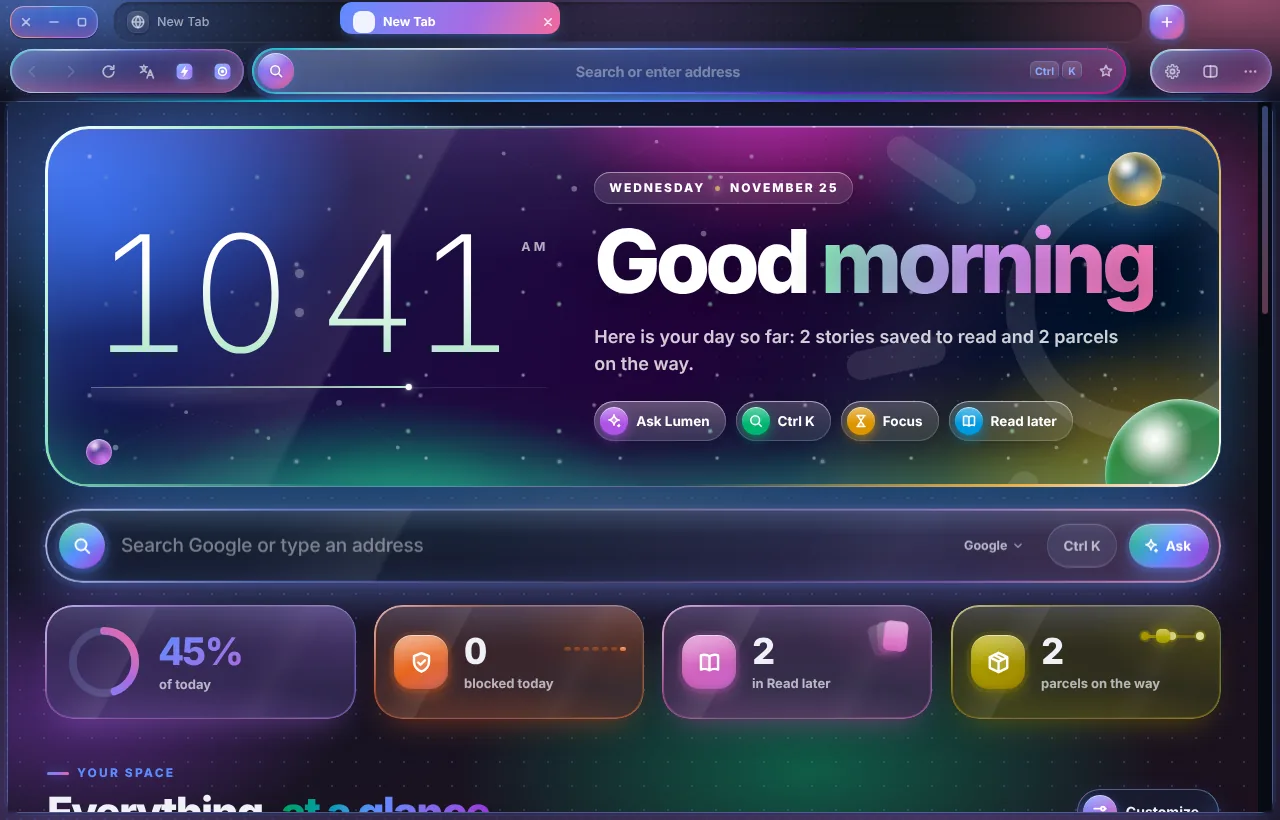
Lumen opens in about a second, answers every click in about 20 ms, and now has Ask Lumen built into every tab.
Lumen is ready in about 1 second instead of 4, with no freeze on first launch. Results show up as you type, and clicking, closing and switching tabs, Back and Forward, and menus all answer within about 20 ms.
Every tab gets a chat with streaming answers. Answers quote the page, and clicking a source jumps to the exact passage. Ask about all your open tabs at once, or tell Cmd K what to do, like close all YouTube tabs.
Home opens on a clean new banner with a premium clock and a live summary of your day. Prefer the old arrangement? Switch between Modern and Classic layouts in Settings or Customize. Jelly springs are back on every button, tab, menu and card, and every page glides when you scroll.
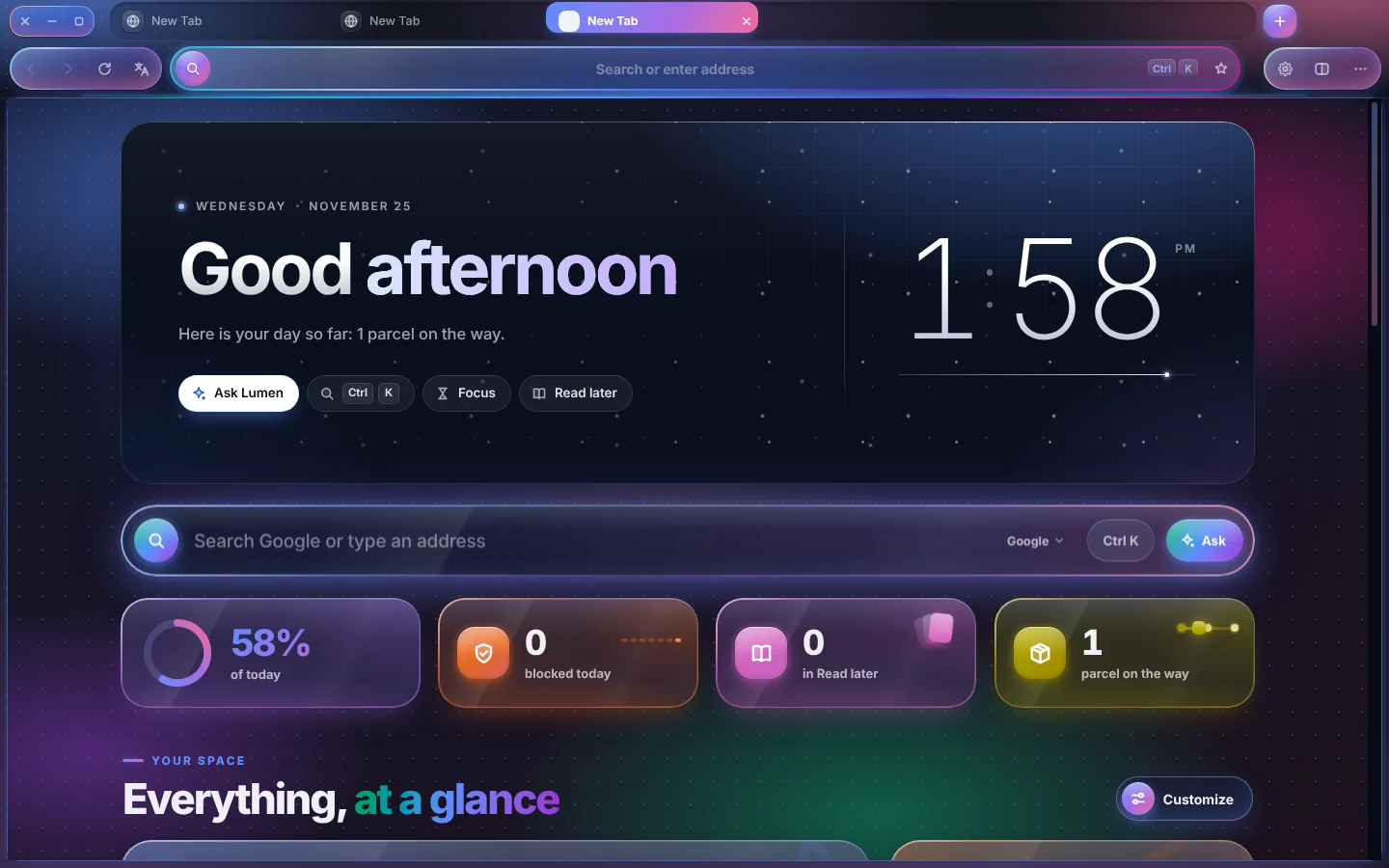
Every new tab opens on a big hero banner with a sleek clock and a live summary of your day. Search smartly, glance at pulse tiles, drag widgets wherever you like, and let Match theme backgrounds tie it all together.
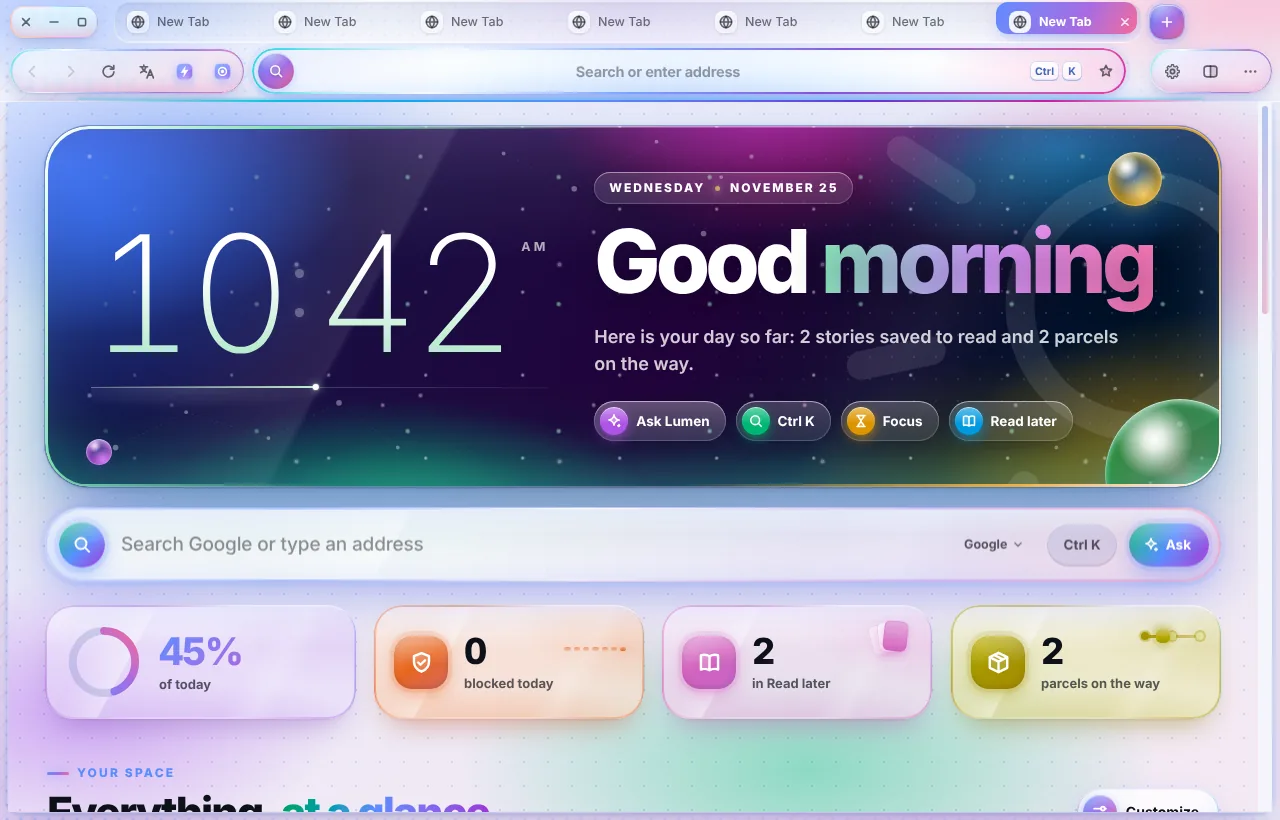
Every Settings and library page has been rebuilt with its own hero banner. Each section gets its own color and animated dots, so you always know where you are.
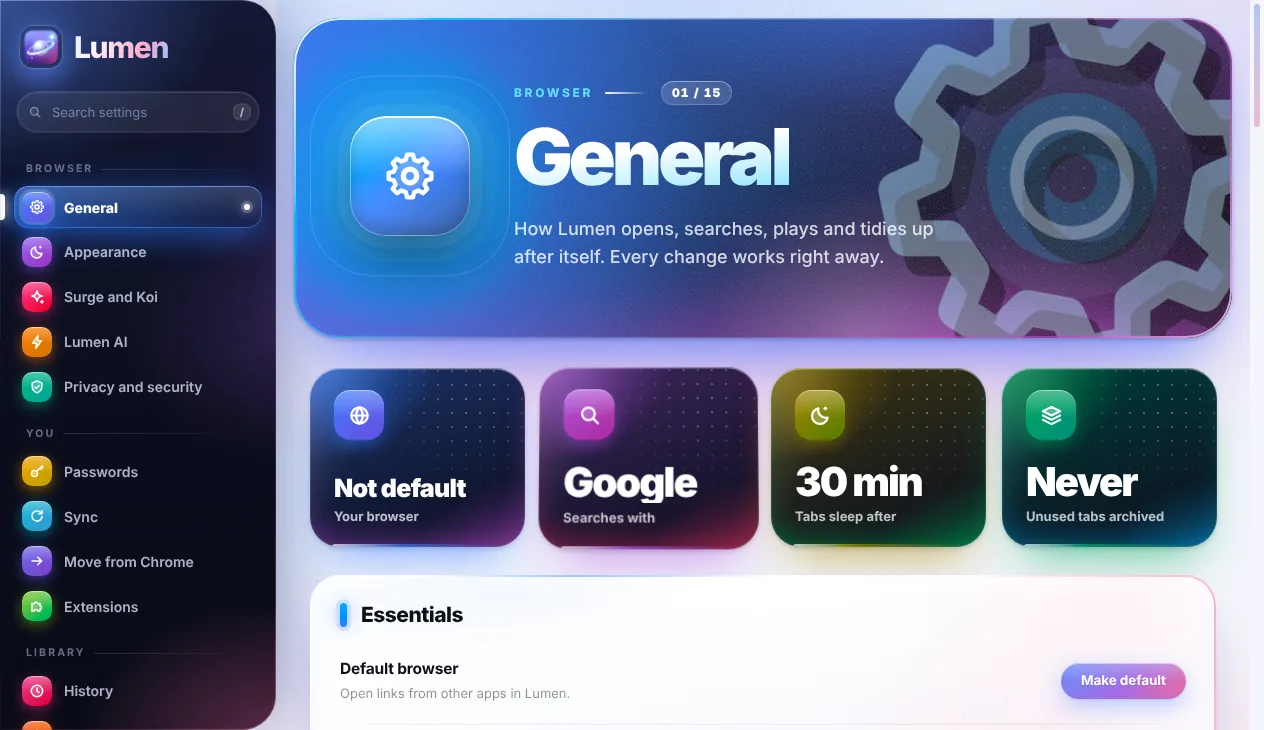
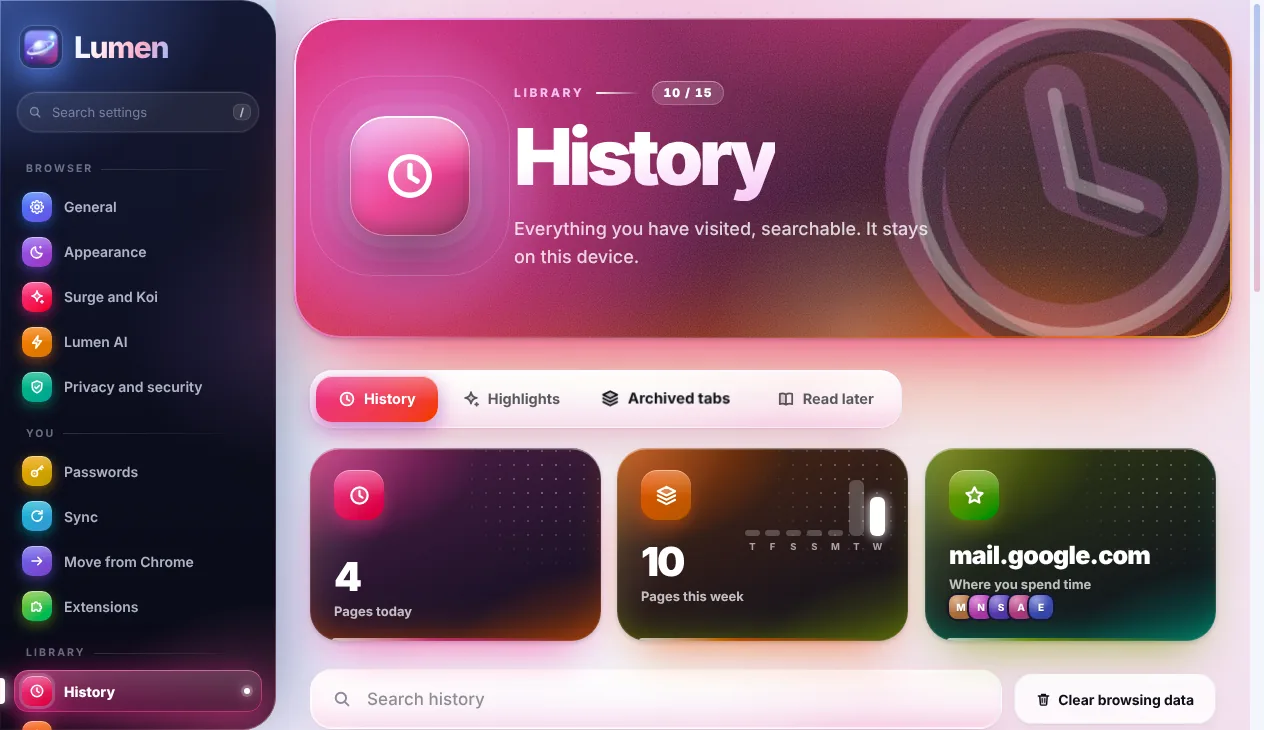
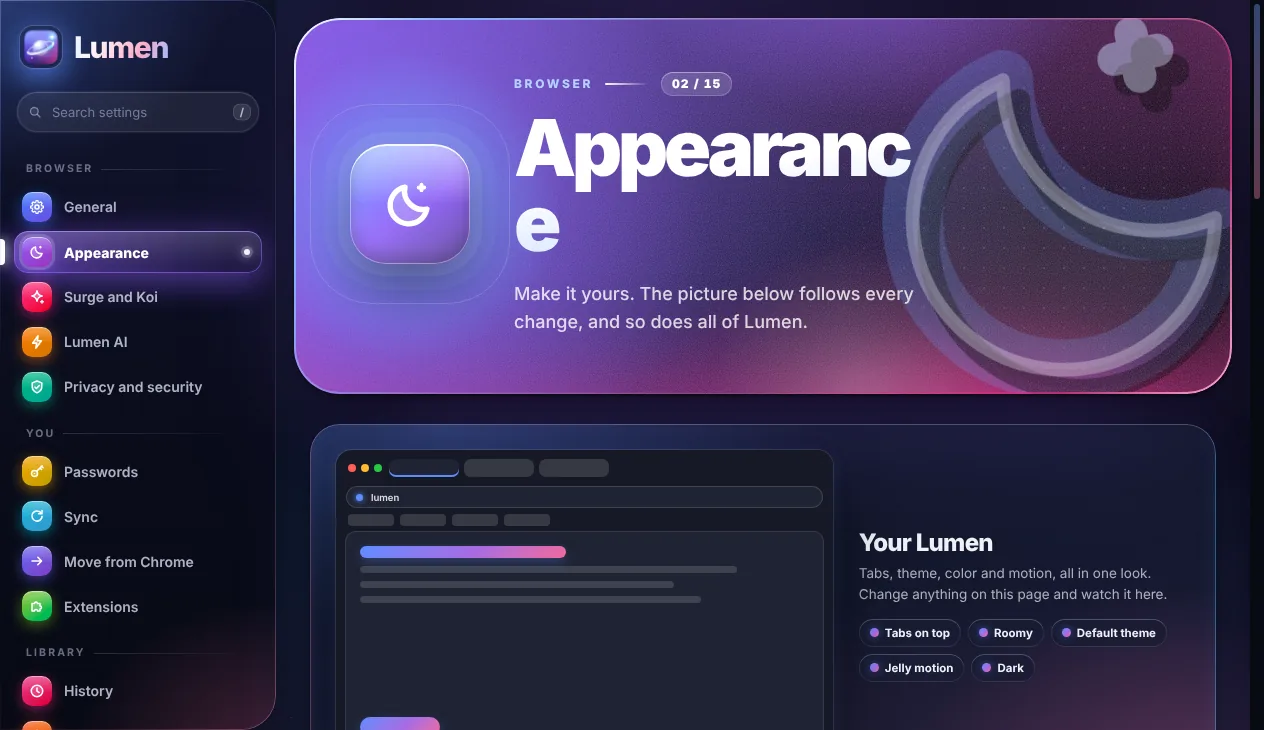
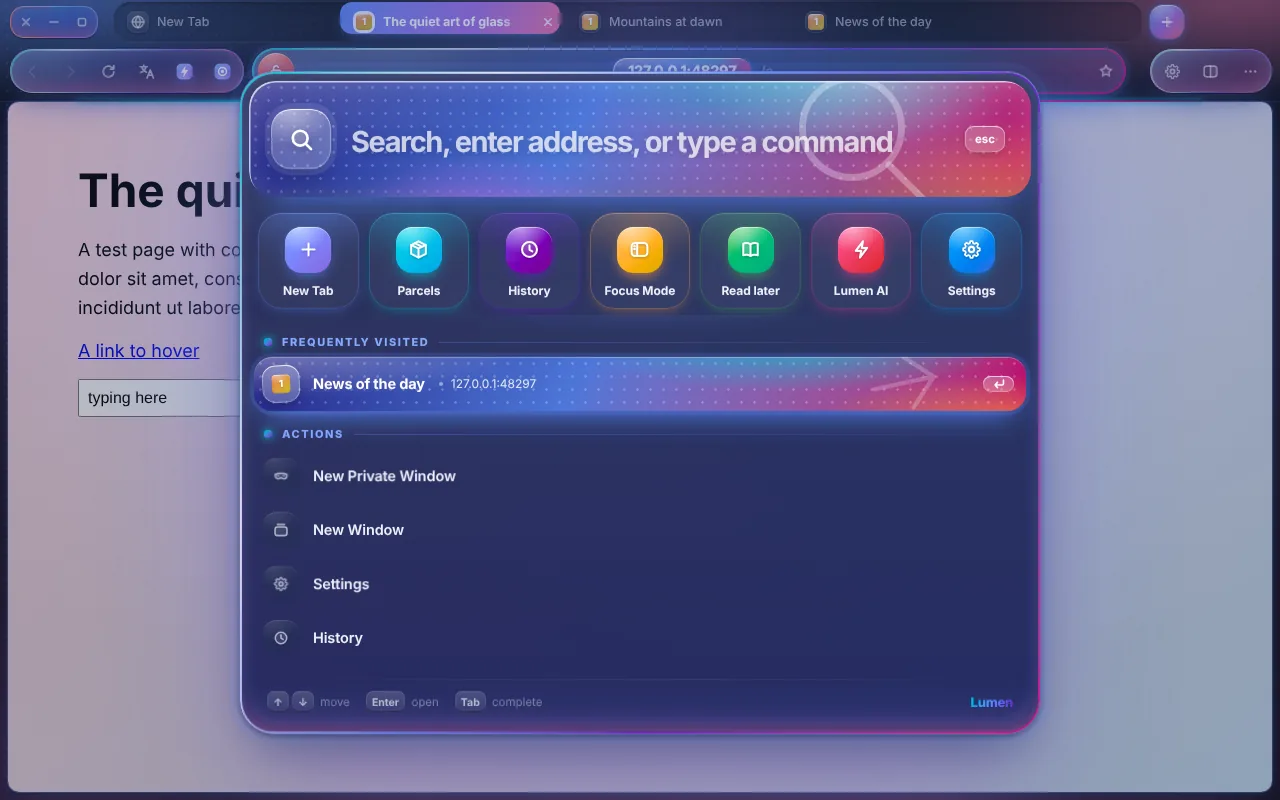
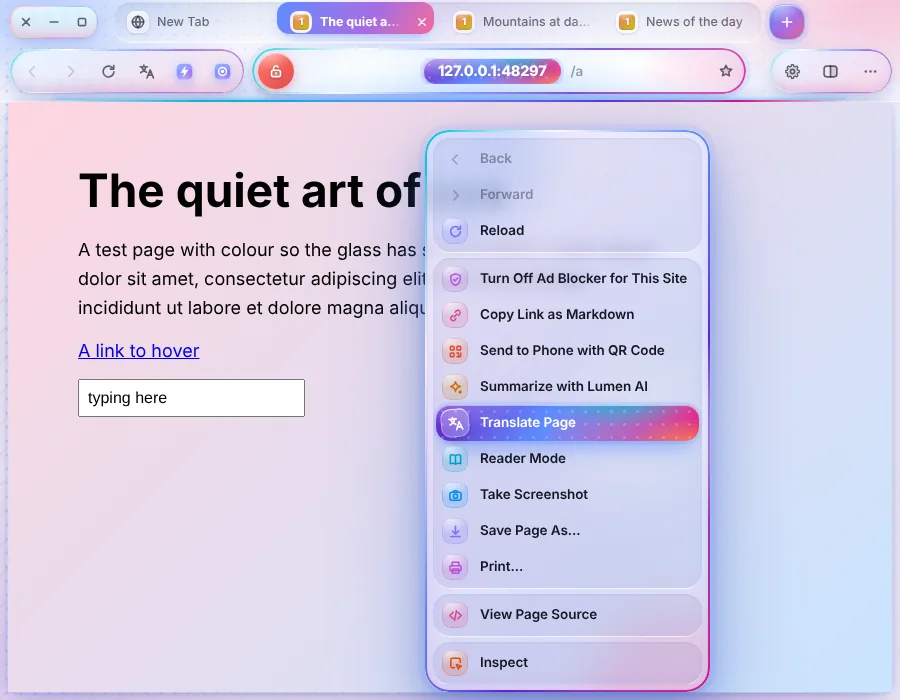
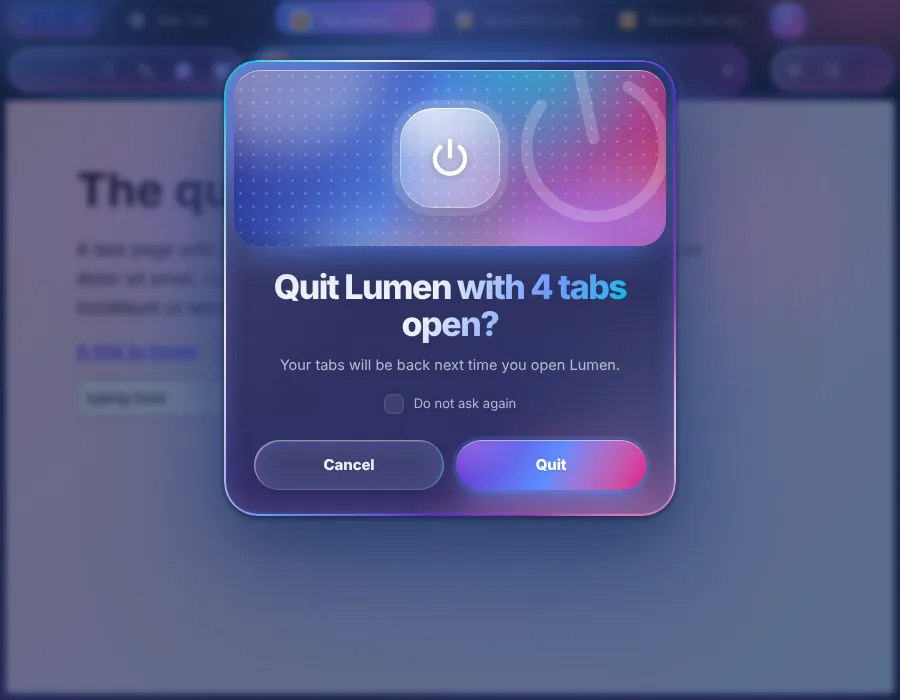
A brand new command bar, plus right-click menus and dialogs that Lumen draws itself in liquid glass, instead of the plain system ones.
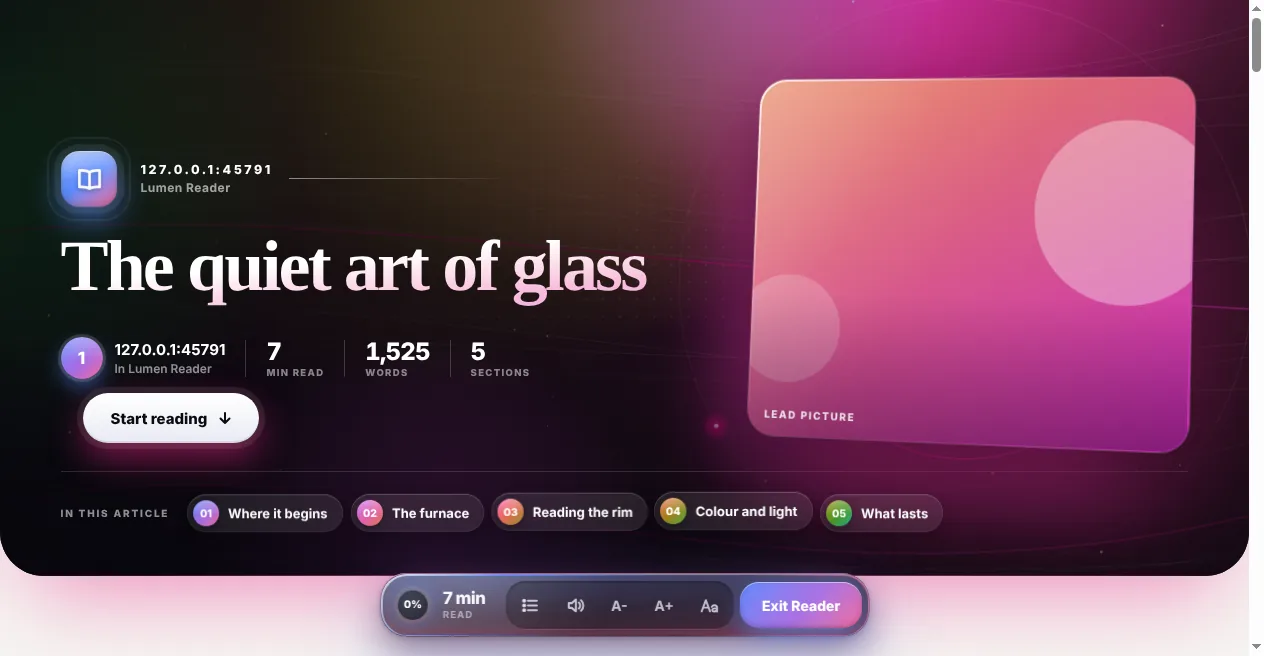
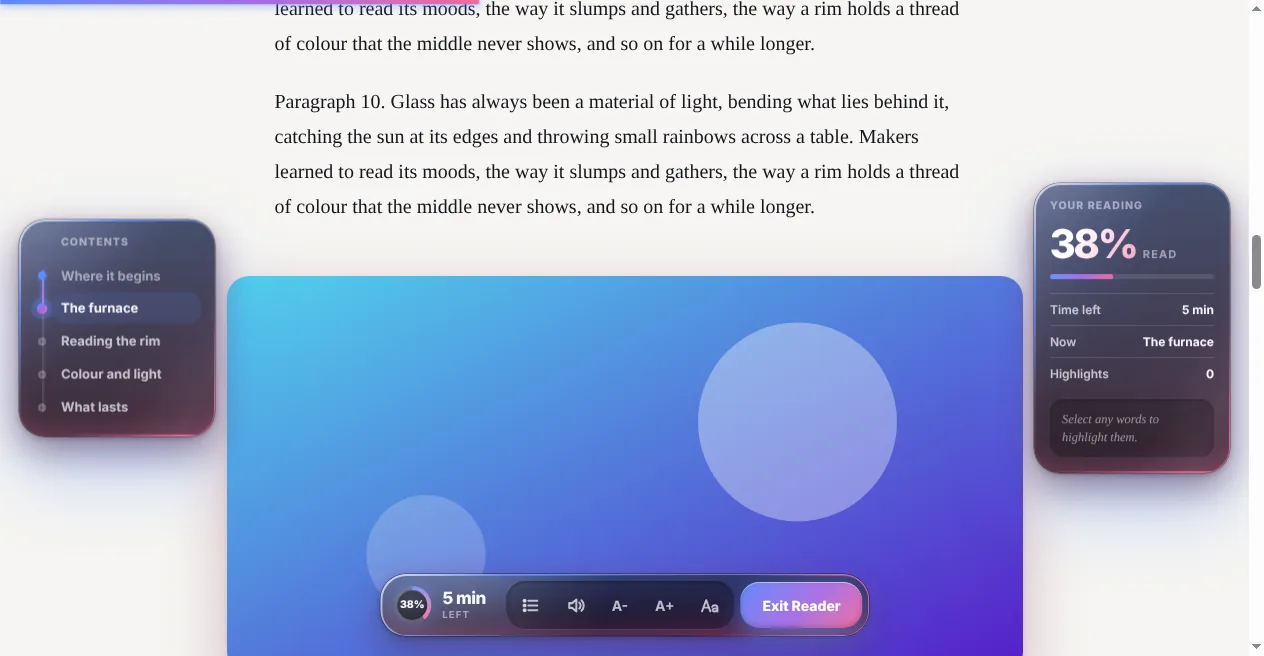
Articles become magazines. Lumen paints cover art from the page's own colors, lays the story out like a magazine, and gives you six themes, a focus spotlight and a reading dock.
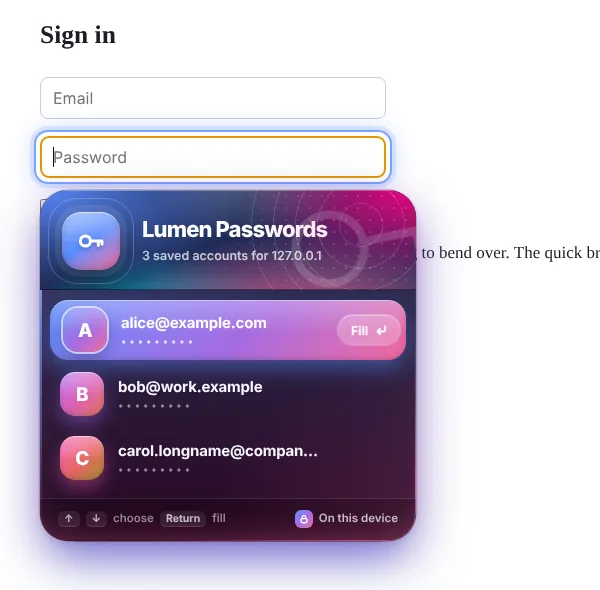
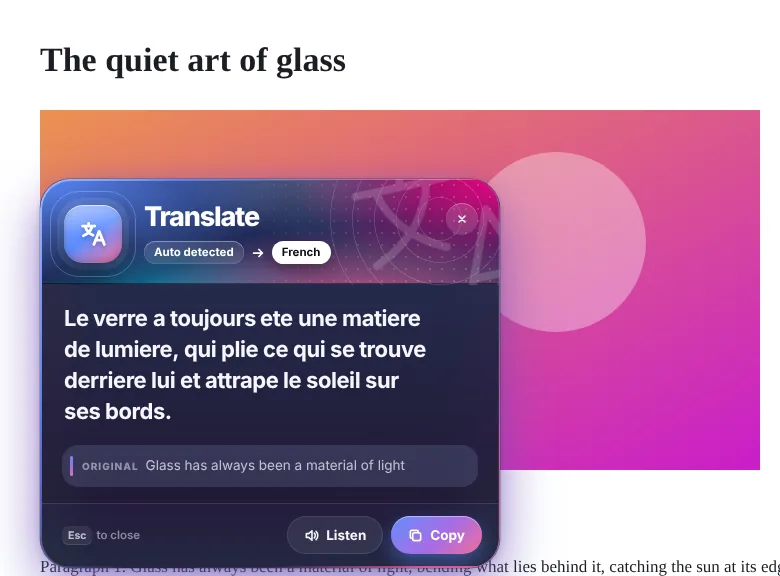
Password and passkey autofill, strong passwords made for you, and a translate card for pages in other languages.
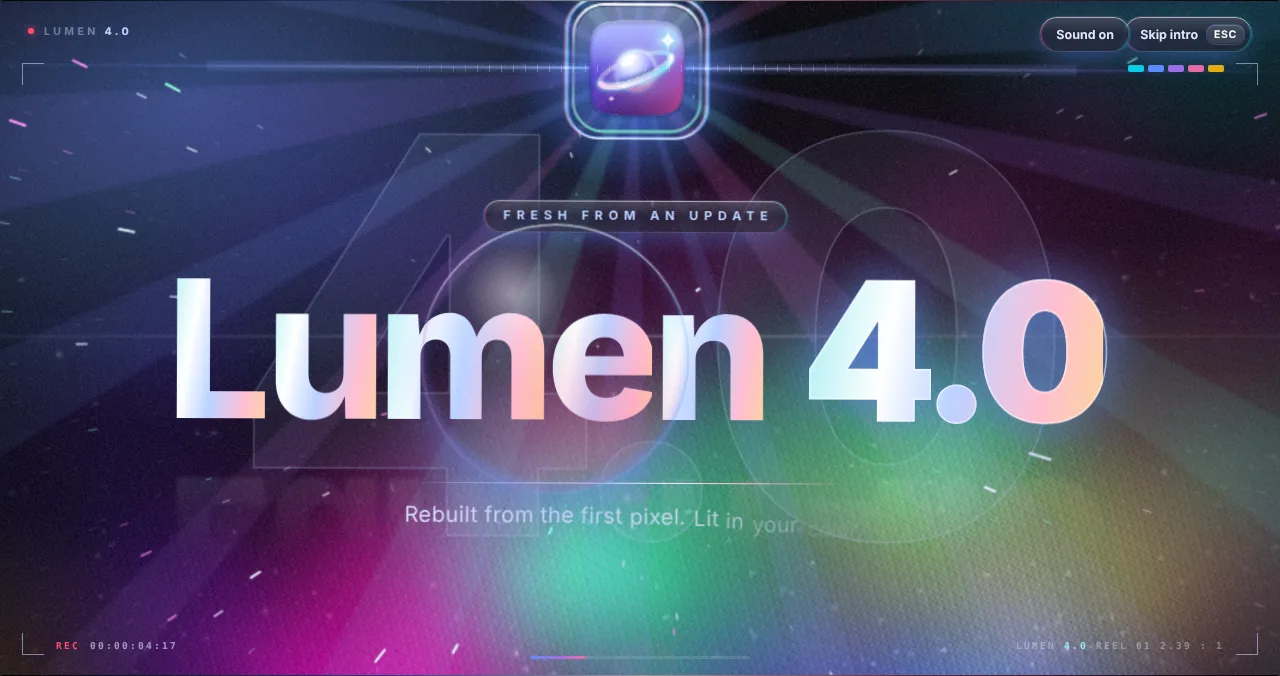
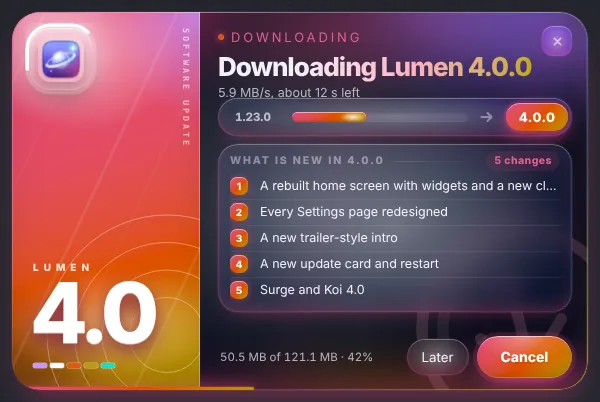
Each new version opens with a trailer-style intro. A new update card shows the download as it happens, and a new restart screen carries you into the fresh version.
Under all that glass, Lumen 4 does less work. These are results from our own tests.
Opens a new tab instantly.
A new tab at rest went from about 33% CPU to under half a percent, in our tests.
About this much less memory, because Surge and Koi now run as their own apps, in our tests.
Smooth scrolling all the way through Settings.
Figures are from our own testing and will vary with your machine and the pages you open.
The things you would normally add with extensions are simply part of Lumen.
Built right in, on every site.
Ask about whatever page you are on.
Even the sites that never made one.
Your deliveries, right in the browser.
Save a story now, read it when you have time.
Surge and Koi used to run inside Lumen. In 4.0 they are their own apps, each with its own download, and Lumen gets lighter for it. Grab joins the family too.
A companion that lives in your menu bar, with glow, sound and handy tools.
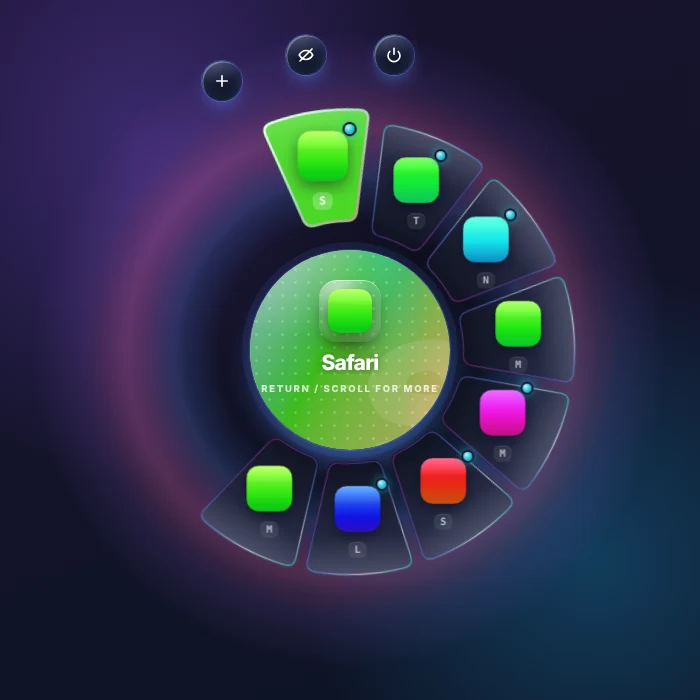
A springy fan of your apps that opens instantly, right under your cursor.
Search any app and install it in one click, straight from the official source. For Mac and Windows.

For Mac and Windows.
Open the download and drag Lumen to Applications. The first time, right-click Lumen and choose Open.
If SmartScreen appears, click More info, then Run anyway.
Nothing to do. Lumen updates itself.
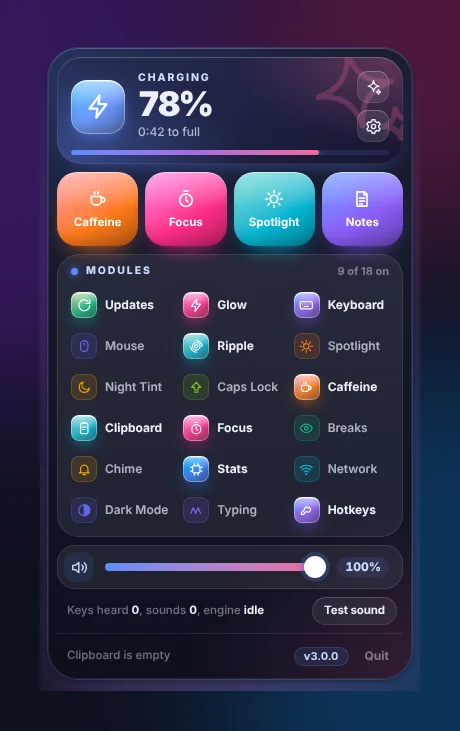
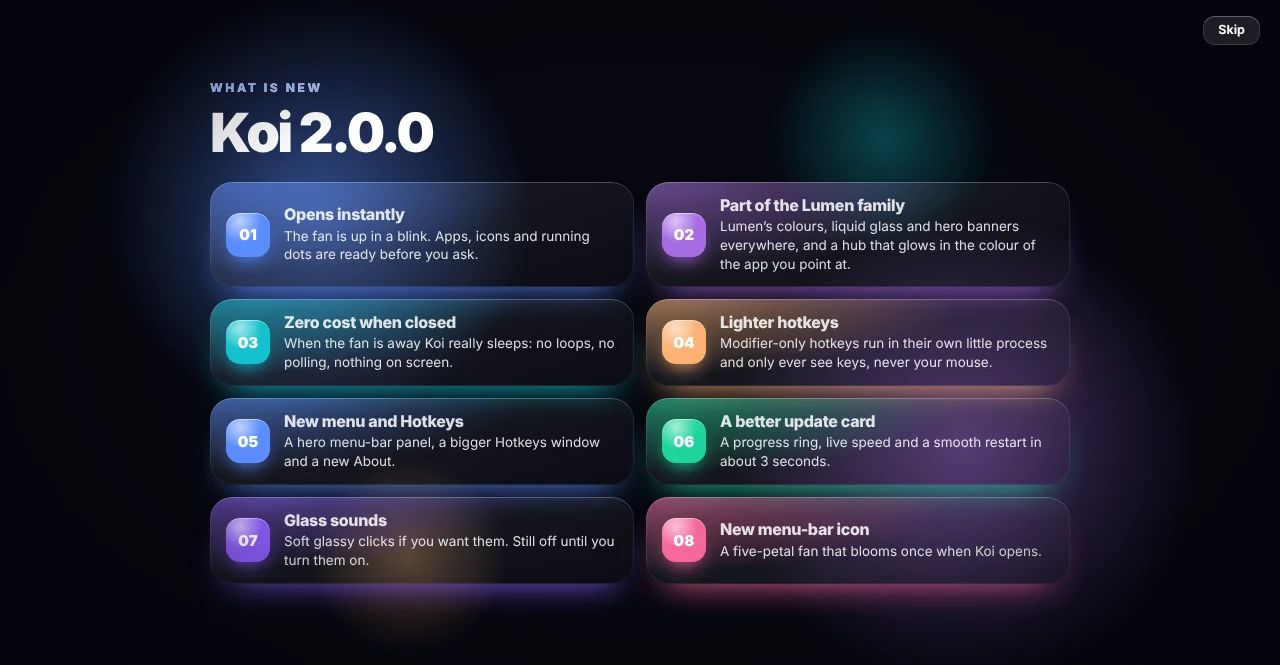
Your menu bar, alive. Charge glow, a flowing battery icon, sounds and ripples for every key and click, and handy tools one click away.
For Apple Silicon Macs. Surge updates itself.
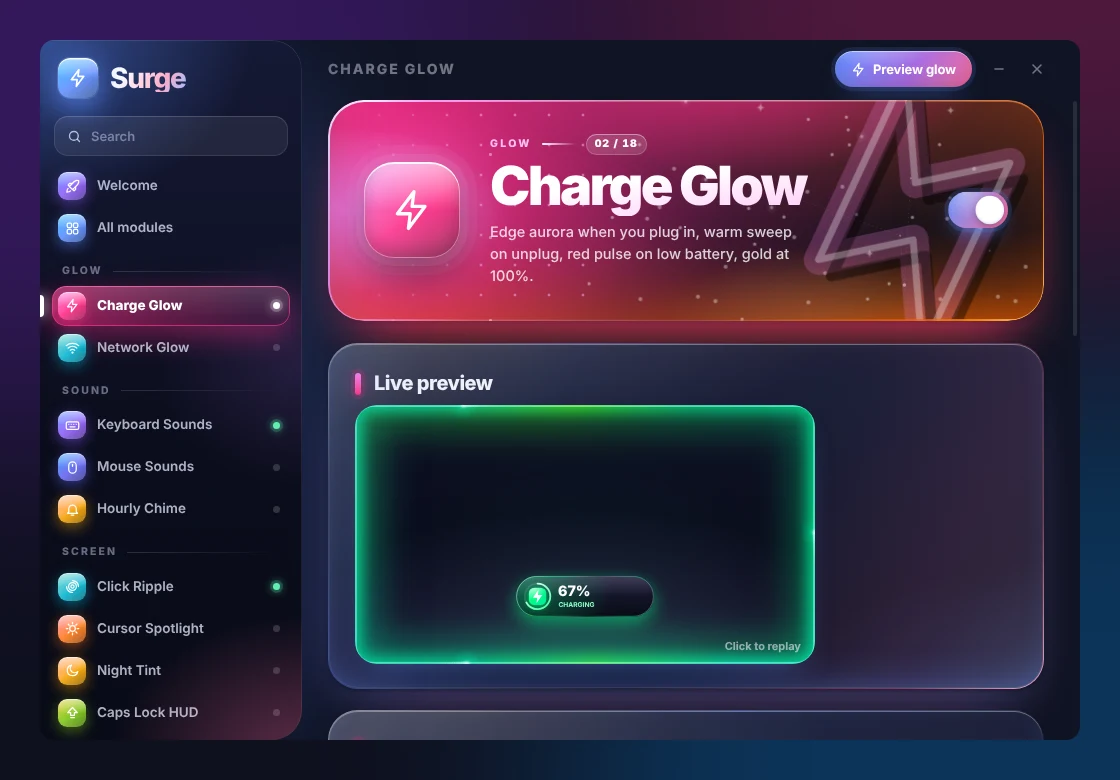
Surge sits in your menu bar and adds glow, sound and handy tools to your Mac. Around 20 modules, each one a switch you flip on or off.
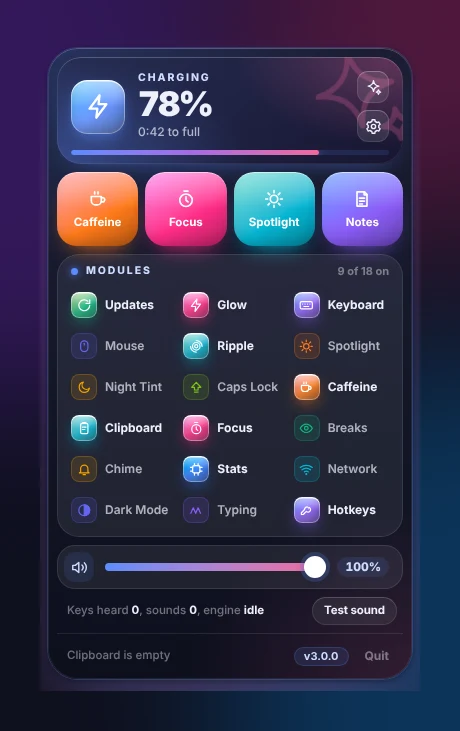
Open Surge from the menu bar to see your charge at a glance and switch modules on and off. Quick actions for Caffeine, Focus, Spotlight and Notes sit right underneath.
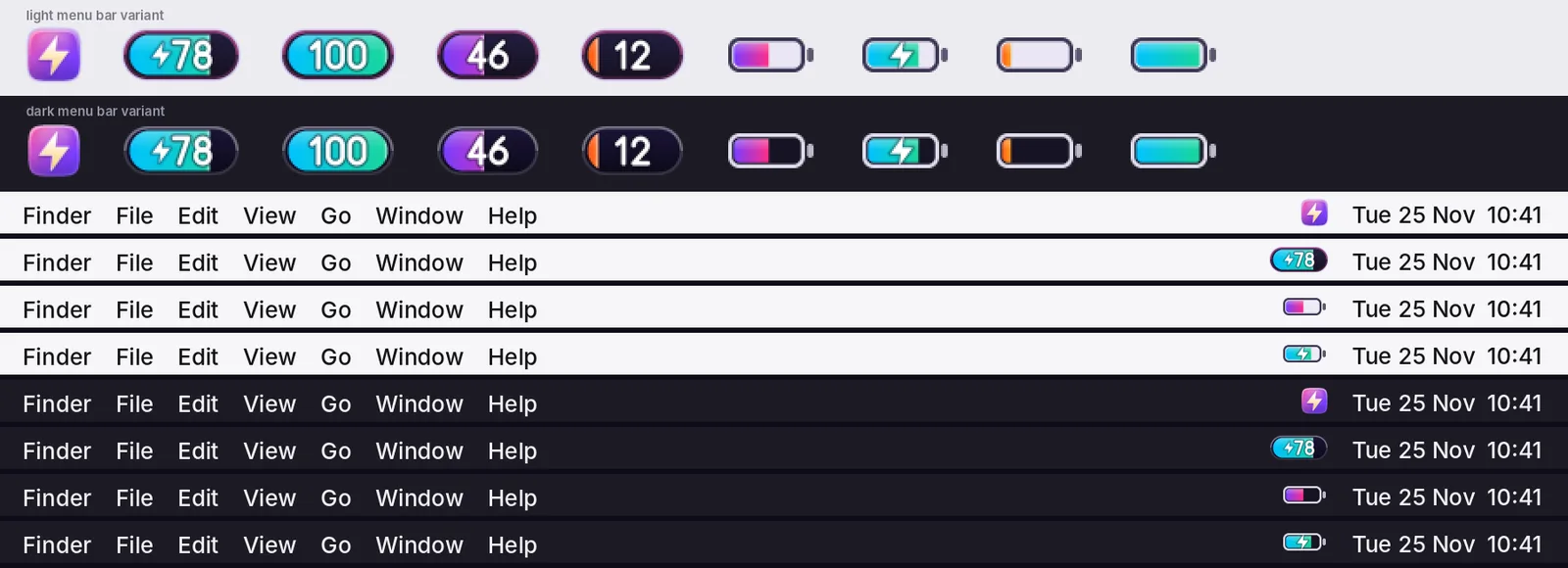
Surge puts a colorful battery in your menu bar. While you charge, light flows through it. It comes in light and dark menu bar versions, as a plain battery or a chip with your percentage.

An aurora glows around the edge of your screen when you plug in, a warm sweep plays when you unplug, a red pulse warns of low battery, and it turns gold at 100%.
Soft sounds for your keys and clicks, with a volume slider right in the menu.
A ripple spreads out from every click, so you always see where it landed.
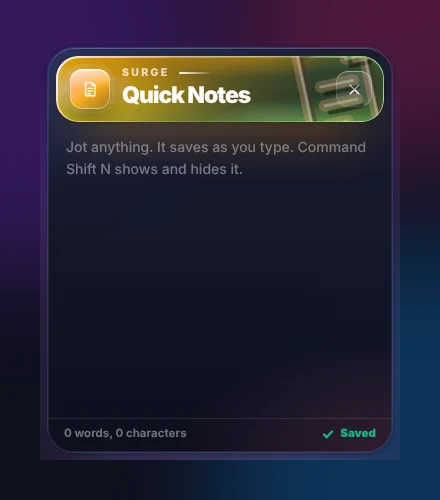
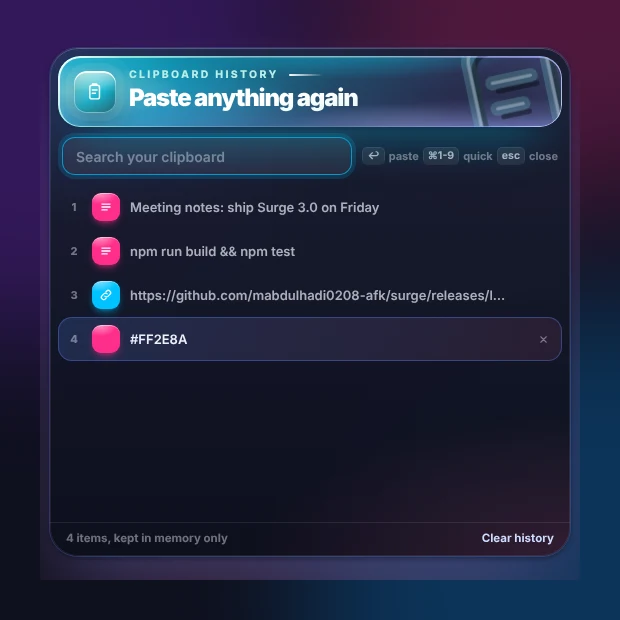
Quick Notes saves as you type, and Command Shift N shows and hides it. Clipboard history keeps what you copied, so you can search it and paste anything again. It is kept in memory only.
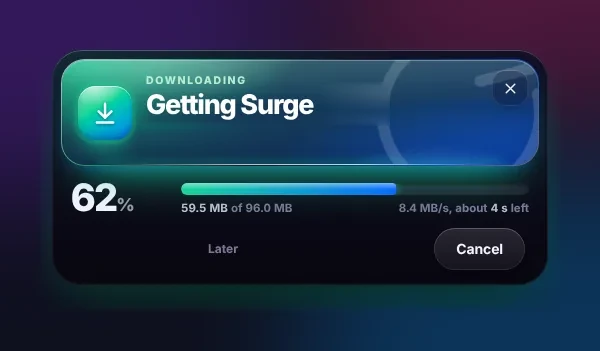
Small glass capsules tell you what just changed, like Caffeine keeping your Mac awake. When a new version is out, Surge downloads it and updates itself.

For Apple Silicon Macs.
Open the download and drag Surge to Applications.
The first time, right-click Surge and choose Open. It then lives in your menu bar.
Nothing to do. Surge updates itself.
Every app, one flick away. Press a shortcut and your apps bloom around your cursor in a springy fan.
For Mac. Koi updates itself.
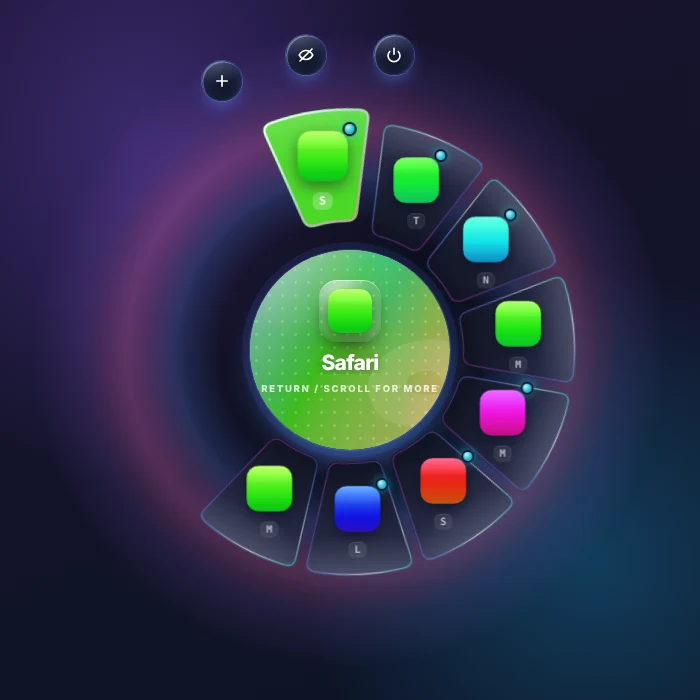
No more hunting through the Dock. Koi opens instantly, right where your cursor already is.
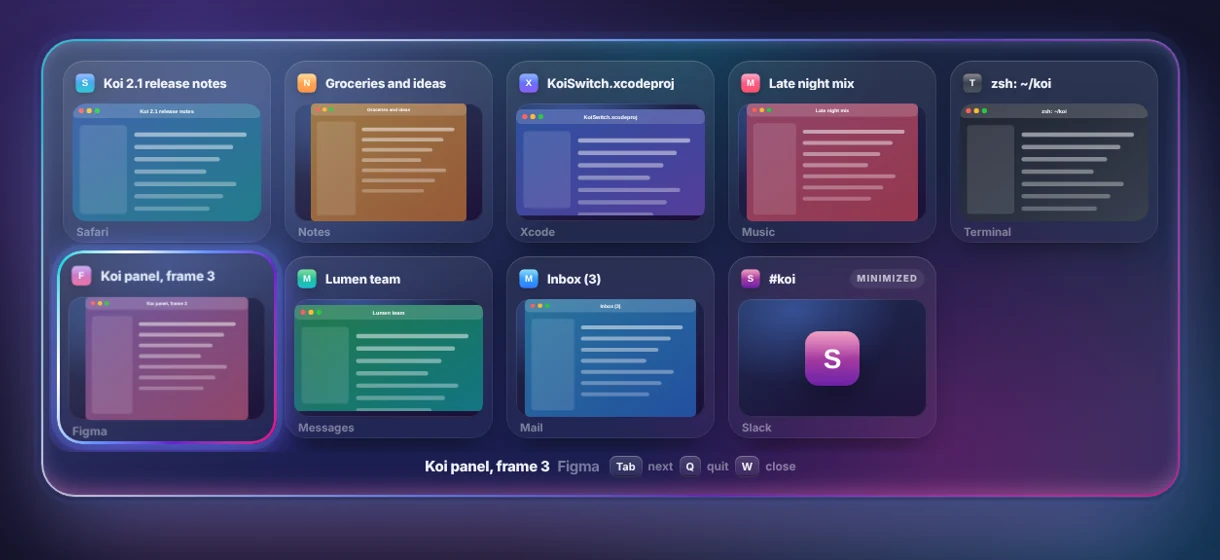
Koi 2.1 replaces the Mac app switcher with one that shows a live preview of every window. Hold Cmd and tap Tab, and the selection glides from window to window. A quick tap jumps straight back to your last app.
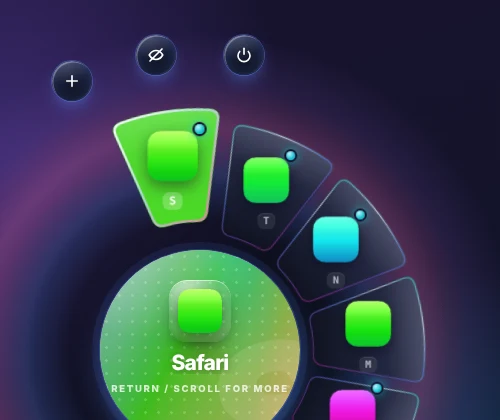
Press your shortcut and your apps spring open around the cursor. Every app has a letter: type it to open that app. Press Return to open the one in the middle, or scroll for more.
A row of actions sits right above the fan, so you can open a new window, hide an app or quit it without leaving Koi.
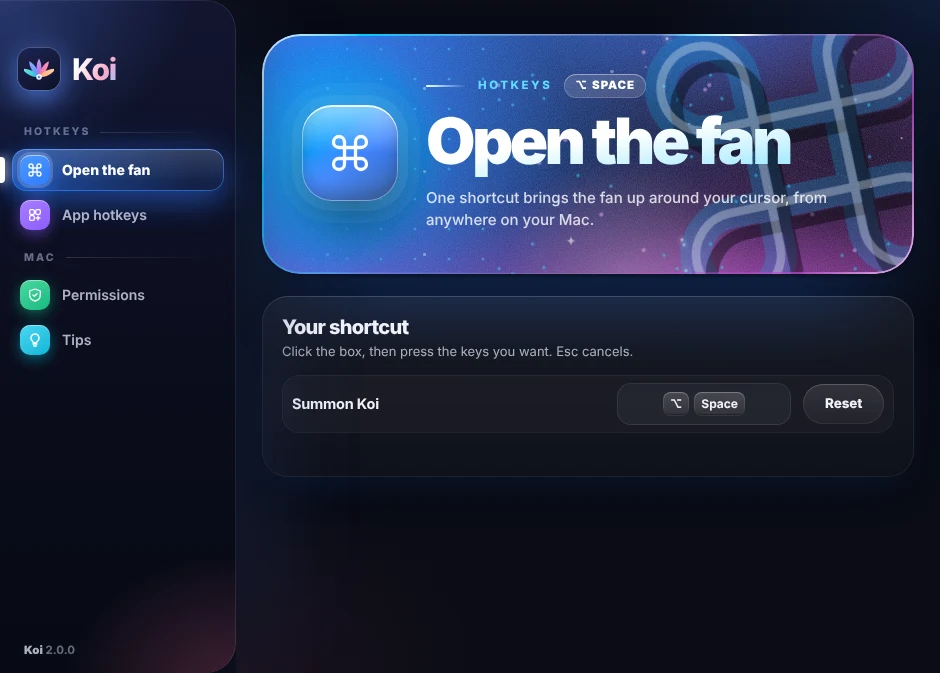
Pick your own shortcut for opening the fan, then give any app its own hotkey, like Option S for Safari, and jump straight to it from anywhere.
Koi lives in your menu bar. From there, choose a dark or light theme, the size of the fan and how lively the motion feels, and switch on optional glassy sounds.
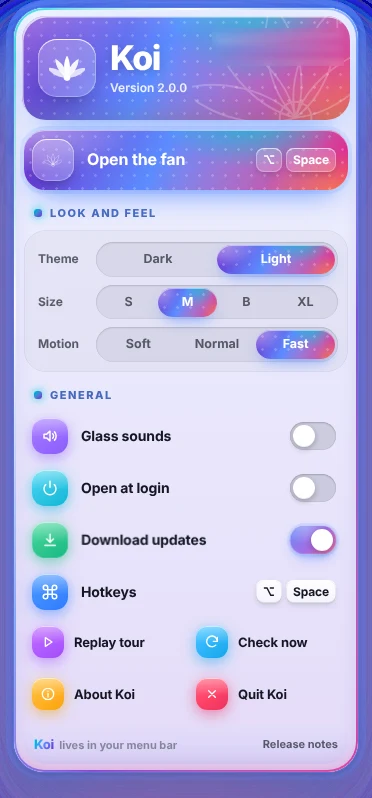
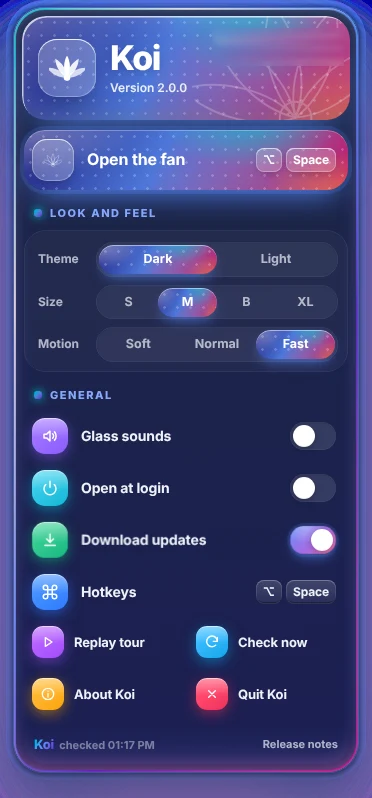
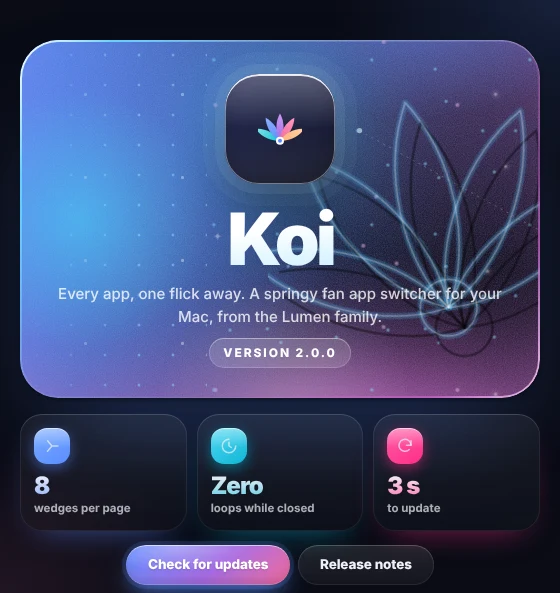

When a new version is out, Koi downloads it and updates itself. Nothing to do on your side.

For Mac.
Open the download and drag Koi to Applications.
The first time, right-click Koi and choose Open. It then lives in your menu bar.
Nothing to do. Koi updates itself.
Any app, one click. Search, hit Get, done. Grab downloads apps straight from the official source, with no browser and no fake download buttons.
For Apple Silicon Macs and Windows. Grab updates itself.
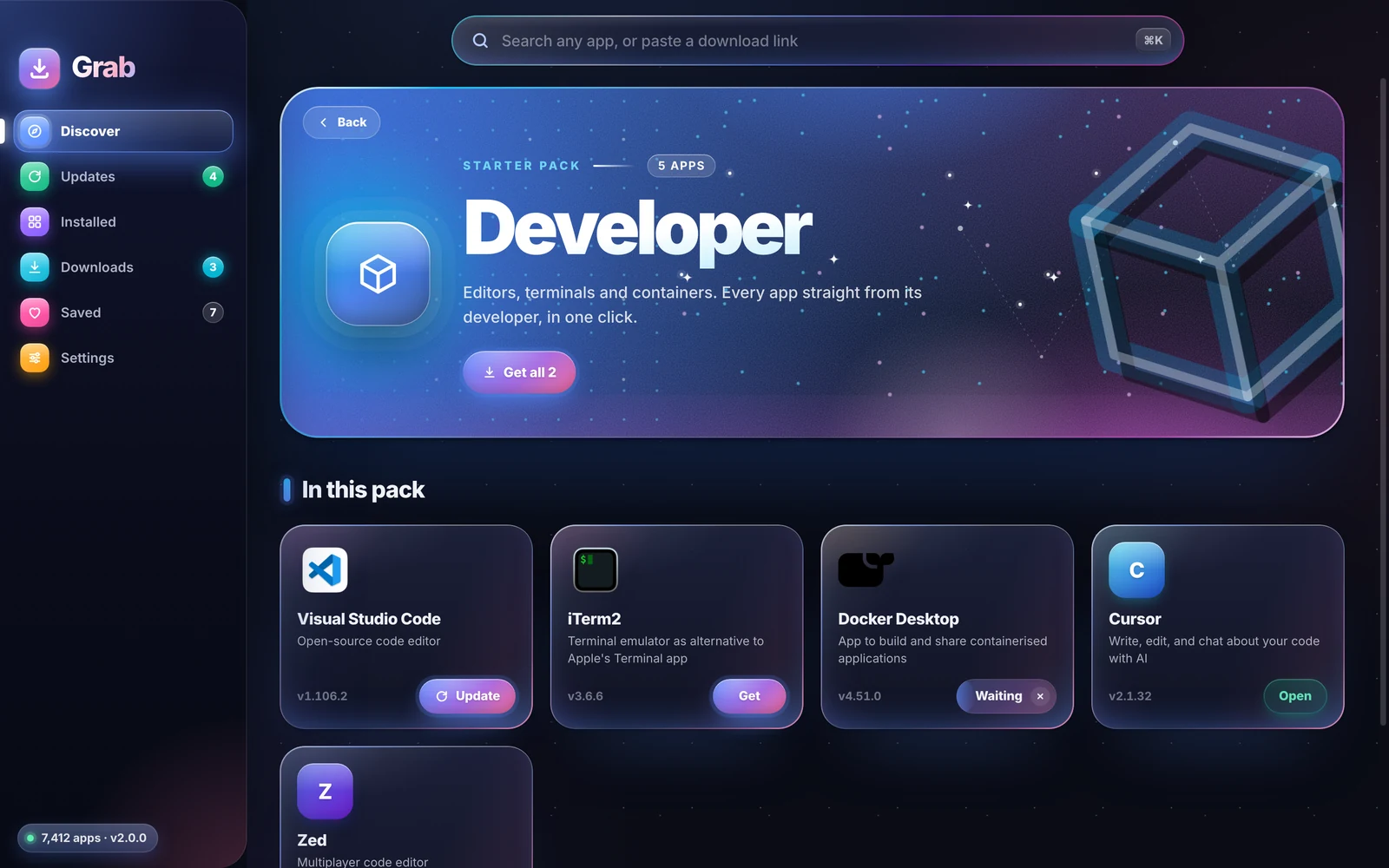
No hunting for the right website, no ads dressed up as download buttons. Grab finds the real app and installs it for you.
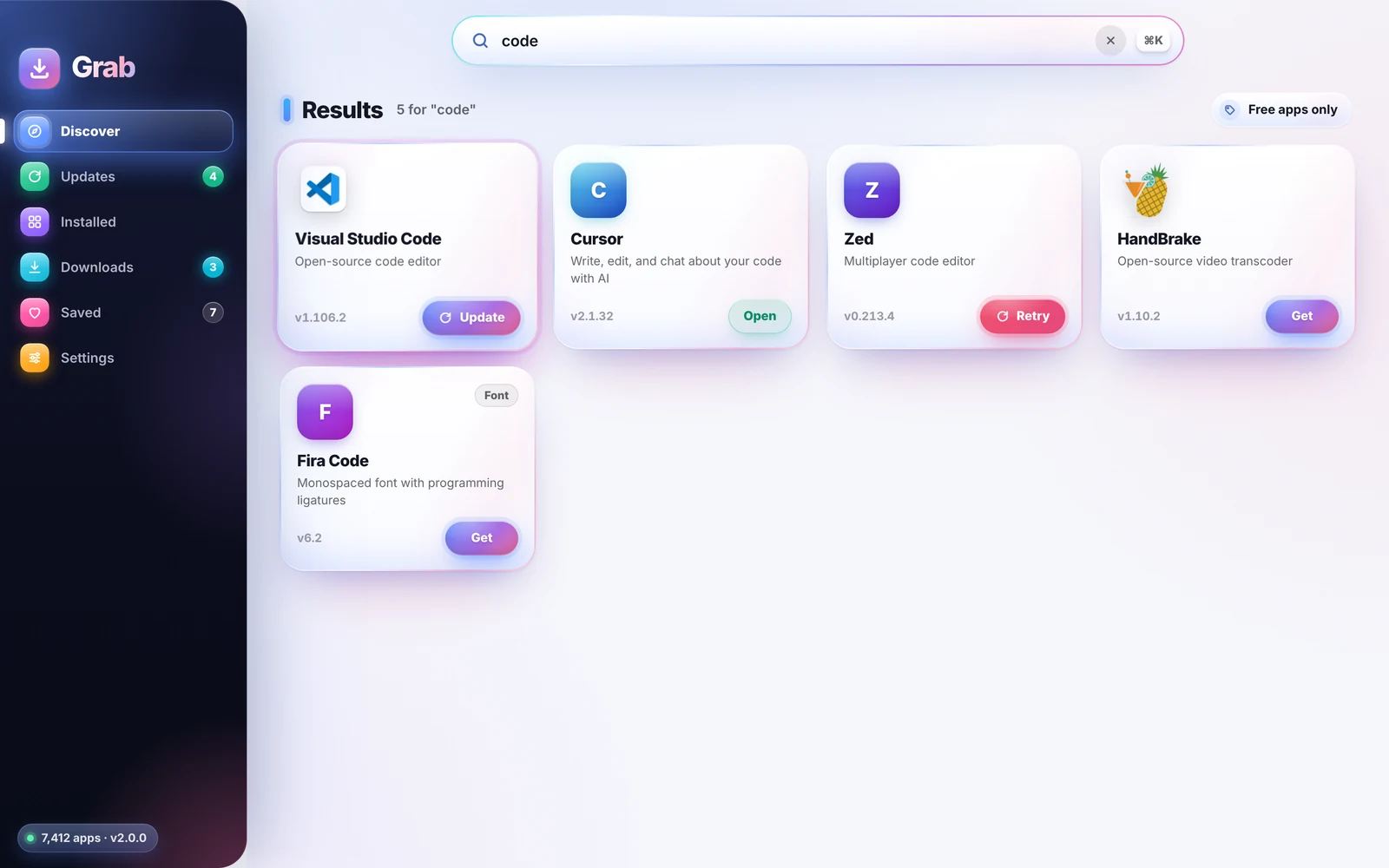
Search more than 7,000 Mac apps and hit Get. Grab downloads the real app from its developer, checks it and puts it in Applications.
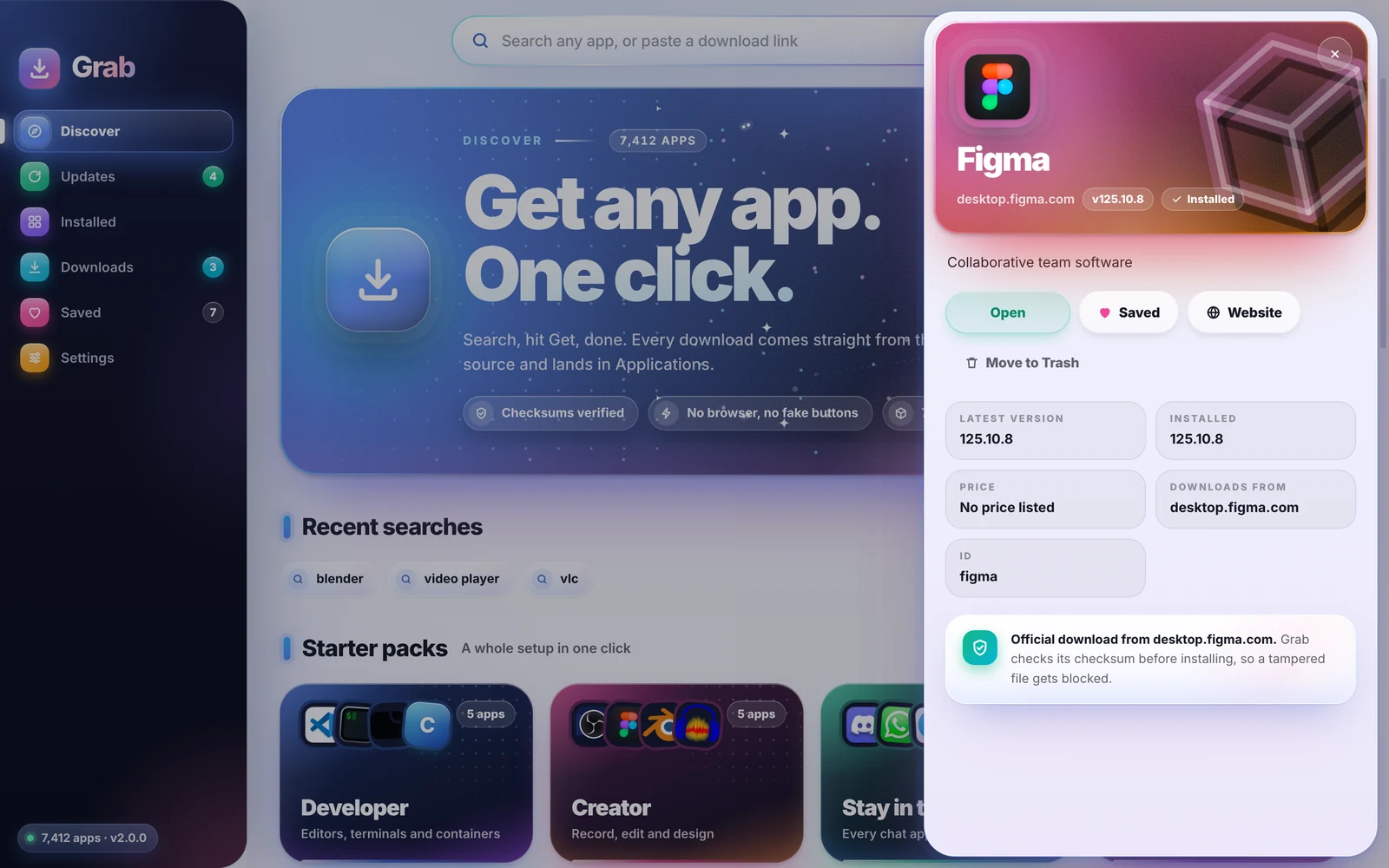
Each app opens in its own panel with its official download address, version and price. Well-known paid apps are labelled, and Buy opens the developer's own site.
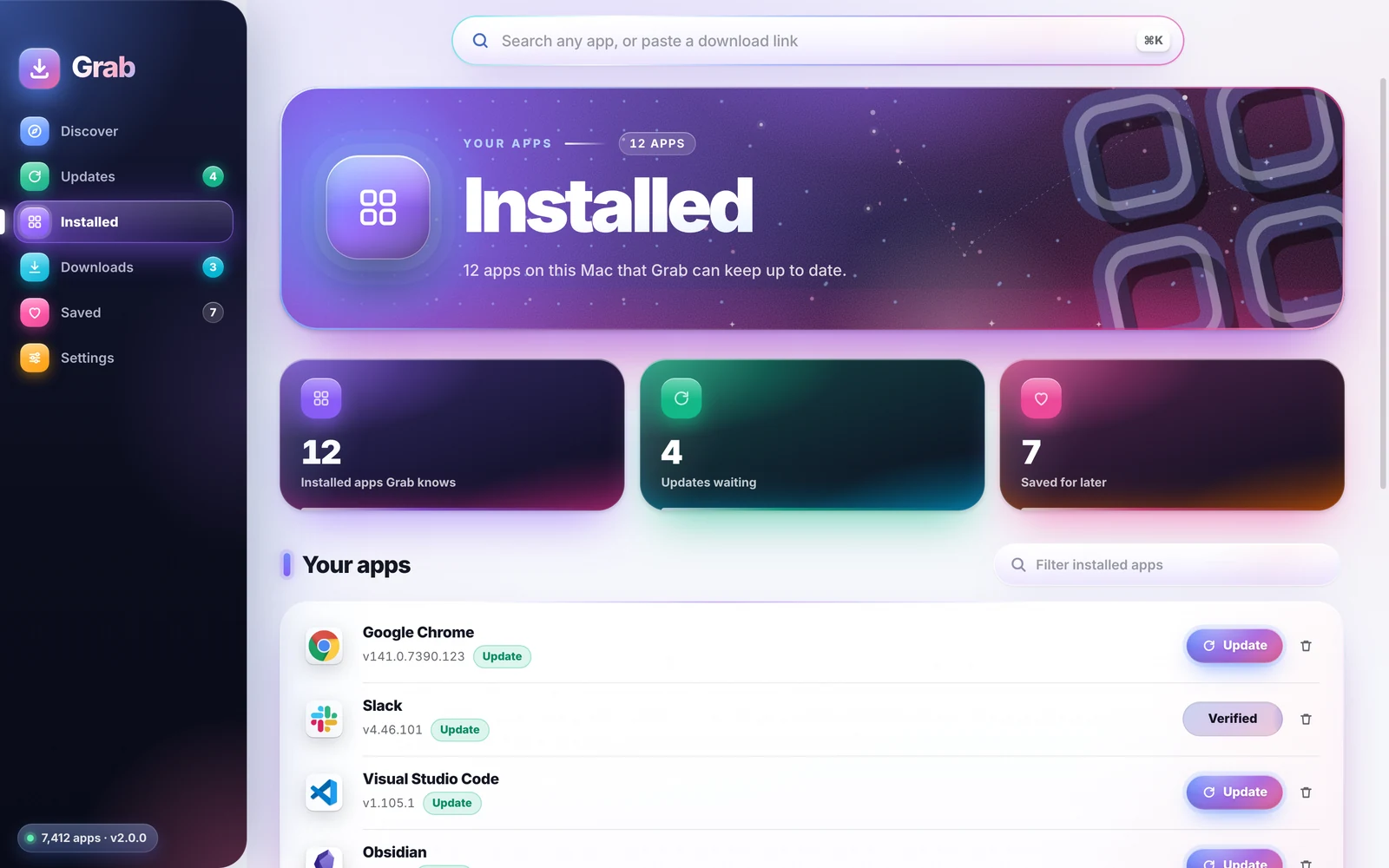
Grab finds the apps you already have that are out of date. Update them one at a time or all at once.
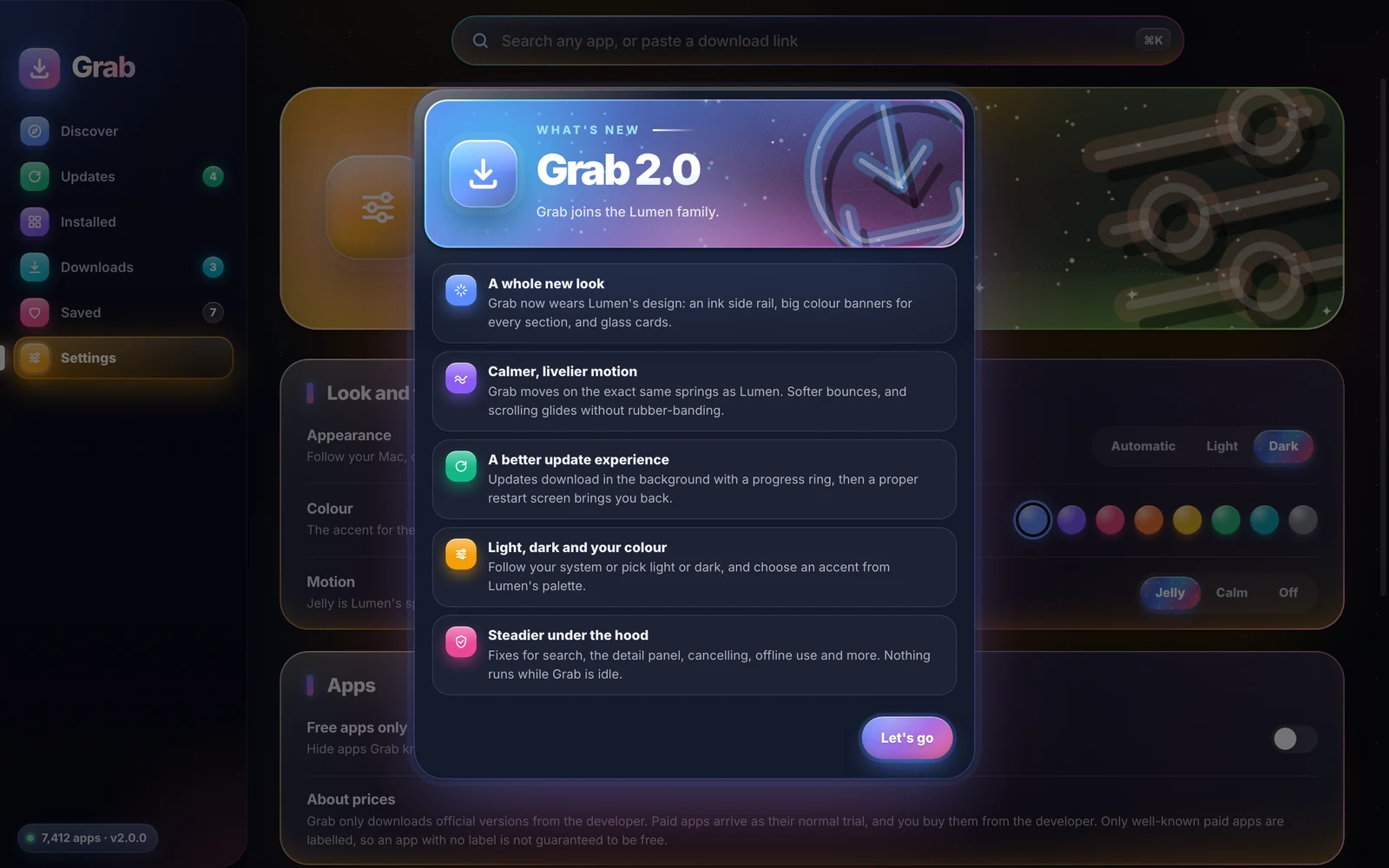
Grab 2.0 wears Lumen's design, with big colour banners, glass cards and Lumen's calm, springy motion. Light, dark or automatic, and it updates itself.
Type a name and Grab searches a catalog of more than 7,000 Mac apps. Hit Get and you are done.
Every app comes from the official download, and Grab checks the checksum before it installs. No fake download buttons.
Grab downloads the app, opens the DMG or zip and drops the app into Applications for you. No browser needed.
Grab finds the apps you already have that are out of date. Update them one at a time or all at once.
Paste any direct download link (.dmg, .zip, .pkg, .exe or .msi) and Grab downloads and installs it.
On Windows 10 and 11, Grab searches the official winget catalog and installs quietly, with every installer hash checked.
For Mac and Windows.
On Mac, open the download and drag Grab to Applications. On Windows, run the installer.
On Mac, right-click Grab and choose Open the first time. On Windows, if SmartScreen appears, click More info, then Run anyway.
Nothing to do. Grab updates itself.